Monday, February 29, 2016

Papeeria News, Feb 29: link sharing option

If you want to invite someone to work with you on your project, you can now generate read or write link and send them to your colleague using any communication tool. Switch on Link Sharing to get read and write access links.

Link Sharing option

Any registered user who gets the sharing link will be able to access the project. Links are permanent and can be used many times. If you need to invalidate the links, switch Link Sharing off. Switching it back on later will generate new links.

Learn more about project sharing from our help pages.

Monday, February 22, 2016

Papeeria News, Feb 22: feature which you don't want to use and graduation from Beta

TL;DR: we added a feature which we hope you will never need to use and consider ourselves graduated from Beta

Leslie Lamport (that guy who created LaTeX, yo) defined distributed system as the one where the crash of a computer you've never heard of stops you from getting any work done. This perfectly applies to online services as well and sometimes we hear from people that they don't use online services for writing their documents exactly because of that. And in many cases outage it is not the fault of the service: it is the fault of the datacenter where the service is running.

Fortunately we have never faced such outages but our competitors did:
Since our beta launch in September 2013 we have been concerned about the availability of our users' data and we're glad to announce that from now on Papeeria users will have access to their projects even if a datacenter where Papeeria servers are running becomes unavailable.

Papeeria Carbon Copy [1] is another instance of Papeeria which runs in a separate availability zone and is synced with the main site. In the unlikely event when the main Papeeria site goes down, you can still access your data through the Carbon Copy site.

We do our best to make sure that you will never have to use this feature and constantly add monitoring and self-healing measures to the main site.

However, now we can consider ourselves as graduated from beta phase where we have been for the last 2+ years. Service availability was the key thing which kept us in beta according to our quality standards.

[1] Papeeria Carbon Copy: http://cc.papeeria.com

Thursday, February 4, 2016

Vote for Papeeria on TeX Stack Exchange!

Hey Papeeria users,
we need your help. Yes, again.

TeX Stack Exchange site, one of the best Q&A resources on LaTeX, is running Community Promotion Ads campaign. They will be showing small banners on their pages for free during the whole 2016 provided that banner gets enough votes from the community members.

Our banner participates in the competition and we need your vote!


How to vote: just click upvote (pen nib upwards) icon to the left of our banner in our answer: http://meta.tex.stackexchange.com/a/6538/37807

Who can vote: those who have more than 15 reputation points on TeX SE. If you have them then just vote. If you don't have reputation on TeX Stack Exchange, but have good reputation on other sites from Stack Exchange network, e.g. on Stack Overflow, then you can associate your account on TeX SE with account on Stack Overflow and most likely you'll get enough reputation points to vote.

Thanks in advance for your help!

Tuesday, January 26, 2016

Papeeria News, January 26: bibtex results in full-text search

TL;DR: Matches from BibTeX files show up in a separate formatted list

We added BibTeX "vertical" to our full-text search. Now when there are bibliography matches to your search query you'll get a filtered list with formatted bibtex snippets next to plain-text results:

BibTeX search results


Tip: there is a clickable \cite{} text at the bottom of every snippet. In most browsers clicking this text will copy the reference to the clipboard and you'll be able to insert it into the text where needed.


For the users of free plan full-text search is restricted to the currently opened project only. Upgrade to Delta to benefit from searching across all projects and other premium features.

Thursday, January 14, 2016

Papeeria News, January 14: full-text search

TL;DR: you can use full-text search in Papeeria. Hit Ctrl+Shift+F.

Did you ever find yourself trying to guess which file out of dozens in your thesis includes  that figure? Or maybe trying to recall a specific LaTeX trick which made Beamer slide happy? Wanted to search across all your TeX files? Well, now you can. We just have launched a preview of full-text search.

Button which opens full-text search dialog sits in the top-right corner. You can use a handy keyboard shortcut Ctrl+Shift+F (or Cmd+Shift+F on Mac OSX) to access the dialog.

Full-text Search dialog with search results

Full-text search returns both full and partial matches and understands morphology, so you don't have to type extremely precise queries. Search results are ranked and we show the best results first. In case if you need more results, you can request them by clicking "load more" link.

In the search result snippets matches are highlighted, and clicking a snippet will open the matching file in the new tab and will position the caret exactly at the snippet start.

Full text search is in preview which means that it may not work perfectly sometimes. We're monitoring how it behaves and will update it with bugfixes and enhancements in the course of the next few weeks. Don't hesitate to file an issue or drop us an email if search is broken or works wrong.


This is a premium feature. Users who are subscribed to paid plan Delta can search across all projects which they own or collaborate in. Those who use free Epsilon plan can search currently opened project only.

Want to upgrade to Delta? Get a great discount on annual plan until January 21.

Tuesday, August 18, 2015

Papeeria News, August 18: spellchecker updates and using deep Git repositories

Spellchecker updates

Guten tag, bonjoure, holla! Hey, why is it highlighted with red? We've added German, French and Spanish languages to spellchecker! Italian and Brasilian Portuguese are coming soon.

New languages in the spellchecker

Using deep Git repositories

Sometimes your LaTeX projects are hidden deep in a Git repository. Let's take a look at CV template by Nicola Rainiero which is hosted on GitHub.

In Papeeria you can easily clone the whole repository into a new project, but wait. Besides the CV template, there is a lot of other cool stuff which you probably don't need at the moment. Can you just clone a single folder with the template?

Repository with CV template by Nicola Rainiero and other LaTeX stuff

Yes, you can. Expand Branch section in the dialog and choose the folder which you want to checkout  /CV_models/EuroPassCV in our case  and create a project.

You can choose a subfolder when cloning Git repository in Papeeria

Your new Papeeria project will have only the sources from the chosen folder. And if you had write permissions in the repository (are you Nicola?) you would be able to push the changes from Papeeria to that very folder seamlessly.

Papeeria takes files from the chosen subfolder

This CV template is now available from our Template Gallery. Enjoy!


Tuesday, July 28, 2015

Papeeria News, July 28

TL; DR: read-write sync between Papeeria project and Git repository

Git sync

We're enhancing our Git integration which was first announced in April and allowed for importing Git repository when creating a new Papeeria project. Today we're launching new synchronization features which enable rich git workflow: pull, checkout, branch, merge and push. Git sync is available to both free and paying users, except that some restrictions apply to free users.

Working with Git from Papeeria

I created a new project from our clone of Deedy resume hosted on GitHub and Git section in the Version Control pane shows me some information.
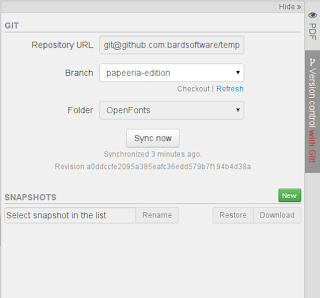
Git section in the Version Control pane

You can see repository URL, name of the branch and the last revision I synced with.

Pushing changes from Papeeria into the repository

I added a new empty file and now I am going to submit it to the repository. Clicking Sync now button in the Version Control pane opens Git Sync dialog where I can pull the changes from repository and optionally push my changes. However, I need to setup my credentials to be able to push. GitHub uses SSH public key for authorization, so I copy my public key from SSH key section in the dialog and paste it into my account on GitHub.
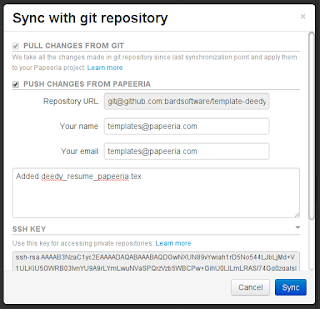
Don't forget to authorize SSH key on your git hosting


Now I can push, and it completes successfully.


Merging changes

I added a few more lines and at the same time my colleague who prefers to work offline cloned the repository on his laptop, changed some lines in his favorite TeX editor, committed the changes and pushed to the repository. We're both using the same branch and I have to pull his changes into Papeeria and merge them with my work. I open Git Sync dialog, pull the changes and merge completes fine as we didn't touch the same lines.

Merge conflict

However, when it comes to merging we're not always that lucky. Now we both have changes the same line and my attempt to sync failed with merge conflict.
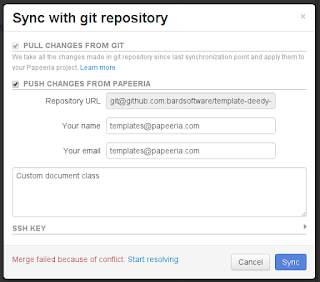
It happens


Project in Papeeria remains intact when merge fails so if I was not in the mood to resolve the conflict I would've just continued my work and merged later. But I don't mind resolving the conflict so I click Start resolving.

Papeeria suggests committing my work into a temporary branch -- that's cool because it allows me to commit and push my updates immediately without waiting for merge.
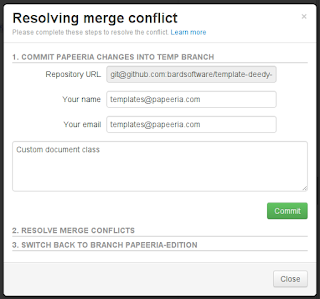
Commit into a new temporary branch before merging


Now I need to do the merge and I realize it requires running an external git client. I decide to enjoy a cup of coffee before digging into the command line and I close the dialog. Papeeria shows me a reminder about the ongoing merge in the Version Control pane.
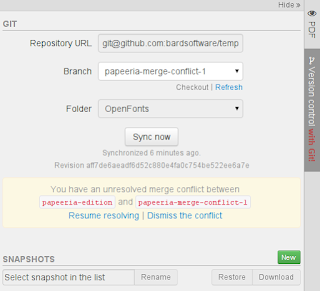
Reminder indicates that you had a merge conflict


In a dozen of minutes I get back to Papeeria and click Resume resolving. Merge dialog shows me a few commands which I have to run. git clone, checkout, merge, edit the conflicts in the text editor, git add, commit, push... done! I've merged the changes and pushed them back to papeeria-edition branch which I had been synced with before the conflict happened. I proceed to the third step and switch to papeeria-edition branch again.
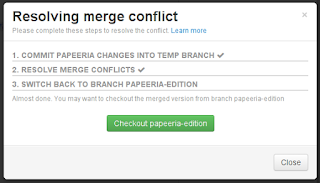
The final step of resolving: return back to the working branch

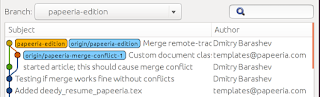
The final history of changes 


Things to keep in mind


  • Only newly created project can be git-enabled.
  • Users subscribed to free Epsilon pricing plan can only pull and push to public repositories hosted on GitHub, Bitbucket, GitLab and Assembla.
  • If you plan to push from Papeeria to Git repo, use SSH protocol and authorize your public key.
  • Merging in case of conflicts requires using external git tools.
Have fun with Git and do no hesitate to contact us in case of any troubles!